Select Version of EA Desktop:
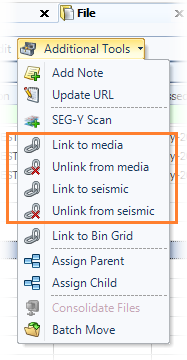
To link, or relink, a file to a media or seismic, use the linking options in Additional Tools.
-
In the File Properties grid, use one of the following methods to select the items to be linked:
-
To select multiple consecutive rows, click and drag in the leader column in the grid.
-
To select multiple individual rows, press Ctrl + Click to select.
-
After selecting the rows, click Additional Tools in the toolbar and select Link Files to Media or Link Files to Seismic.
 Tip:
Tip:You can right-click to open the context menu, then select Additional Tools>Link to Media or Additional Tools>Link to Seismic.
Note:Depending on your menu choice a window will open with some differences. Some of the features are the same. Differences will be noted below.
-
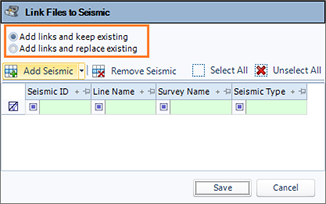
Whether linking media or seismic records, the first option in the window is to configure whether you want to add links and keep the existing links to the source and add new ones, or to add new links and the replace existing ones.
-
Click Add Seismic or Add Media depending on the window open.
 Note:
Note:Depending on the window open, you will have a Media Search or Search Seismic window appear.
The search results will appear in the window.
-
Select the check boxes to select the records from the search results then click Save.